
Operating Systems - Emphasis on Mac OS & Windows
An operating system (OS) is software that manages computer hardware and provides services for computer programs. It serves as an intermediary between users and the computer hardware, facilitating communication and coordination between software applications and the computer's hardware components.
The OS controls tasks such as memory allocation, file management, and peripheral devices, allowing users to interact with the computer in an organized and efficient manner. Common examples include Windows, macOS, Linux, and Android.
Windows Management
This is the windows Desktop , from here we can open apps from either the start menu which is the windows logo at the bottom left or the task bar provided. We can drag and drop app shortcuts to that bar and we can monitor various other facilities on the machine in the lower right in what we call the system tray.
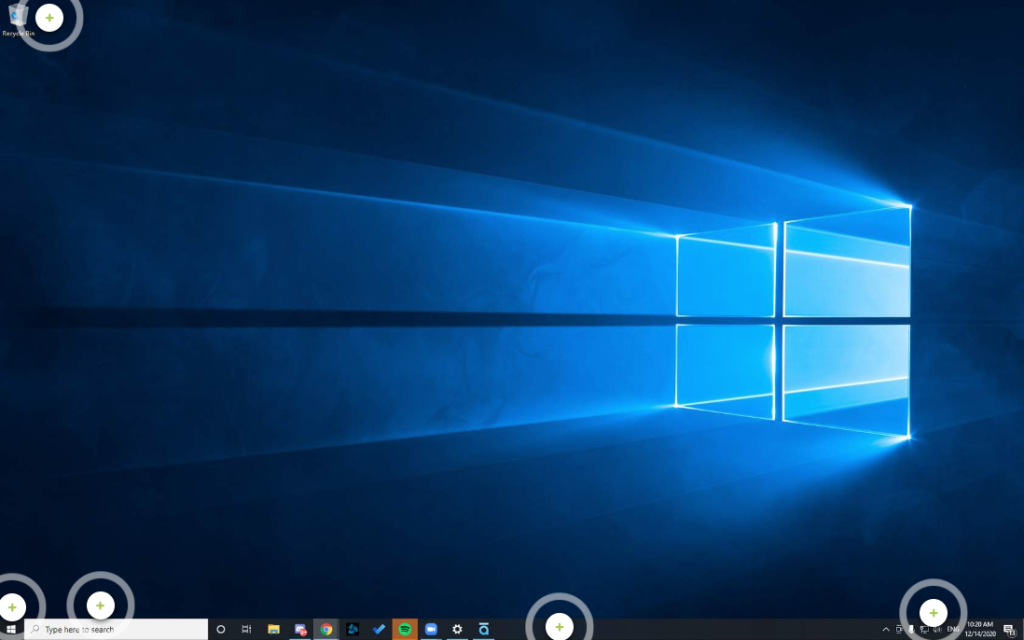
Recycle Bin
Review deleted files before permanent deletion.
Start Menu
Open applications, open explorer to browse files.
Search Bar
Search computer for files/apps or the web.
Task Bar
All of your open applications will appear here along the bottom, you can also pin these applications for quick access. This bar contains the Start Menu, Search, and Sytem Tray.
System Tray
This area displays various ongoing background applications and information about the operating state of the operating system, IE battery Life, WIFI connectivity and Time.
Explorer
So explorer is the application with which windows runs the graphical component of all of the actual windows you see and use to explore your hard drives hence the name explorer. It is also responsible for the Start Menu , Taskbar , Desktop and File Manager.
The Taskbar
This is the Taskbar, Usually orientated at the bottom of your screen but can be freely moved around should you desire to do so. On this taskbar you will be able to see things like your Cortana search bar , this functions basically like spotlight search in Mac , so what you can do is either click inside this bar and start typing or just push the windows key and start typing and it will automatically start searching for you.

This Taskbar also contains all of the icons of open applications on your system and you can also right click any icon that appears here and make it stay in the taskbar even when it is closed like a shortcut, also very helpful.

This is commonly known as the system tray, it can be found on the right hand side of the taskbar , it holds all the information about apps that are currently running on your system as well as the time, the amount of battery remaining , weather or not you are connected to a network and that networks strength (if WIFI). There is also a small upward facing chevron which will allow this menu to expand to reveal all of the applications currently running.

Opening & Closing Applications:
Opening and closing applications can be done quite simply by double clicking on them or right-clicking and clicking on open , or simply single left clicking and pressing the enter key on the keyboard.
System Properties
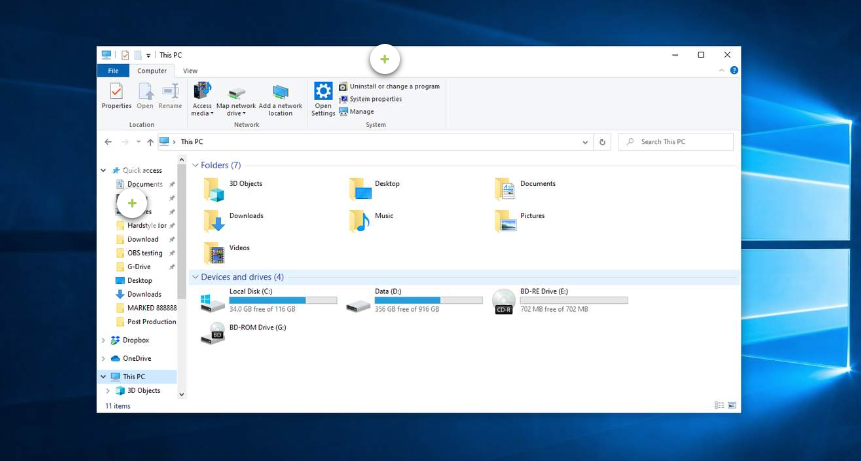
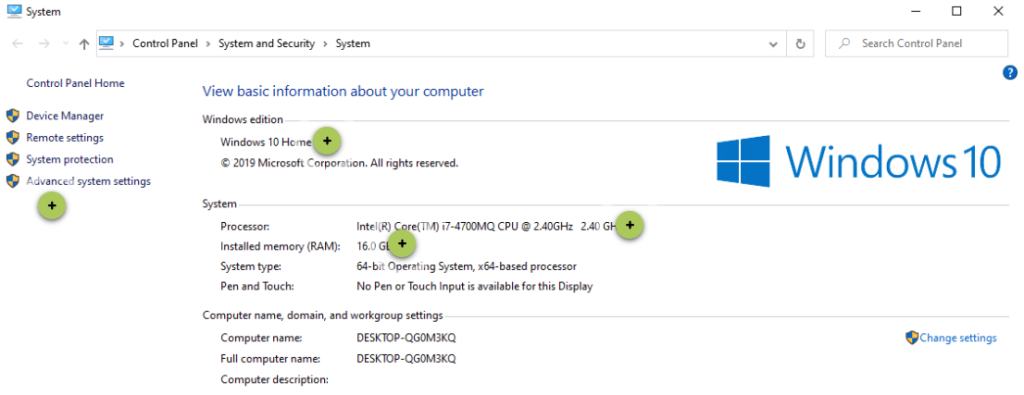
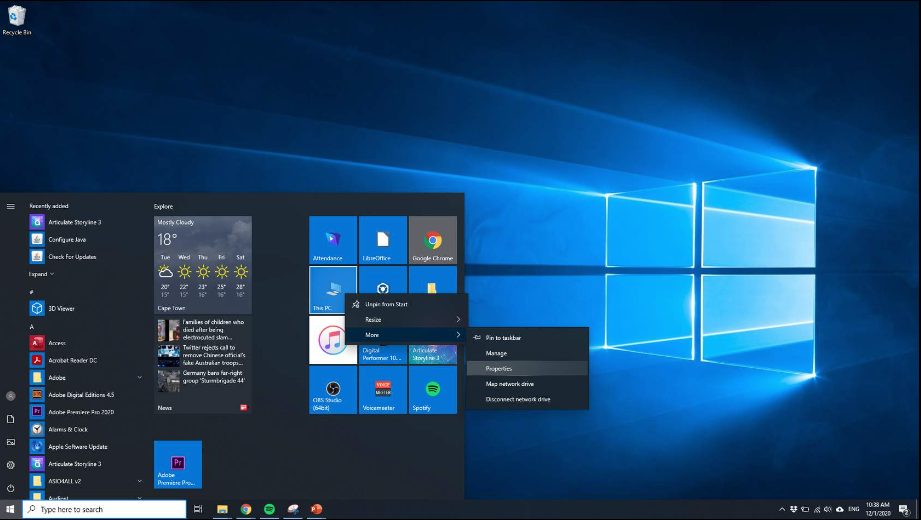
System Properties is whereas the name suggests, we are going to find all of the information about our systems hardware configuration as well as a few options to check our licensing data and edit our licensing data for windows. You reach it by clicking start and then right clicking on my computer and then clicking on the properties title from the popup menu to follow.
Quick Links
This area will take you to various other management panels on your system.
Windows Version
Hardware - CPU, RAM etc.
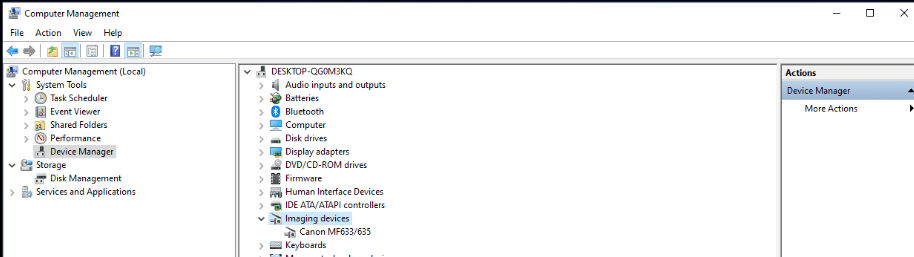
Device Manager
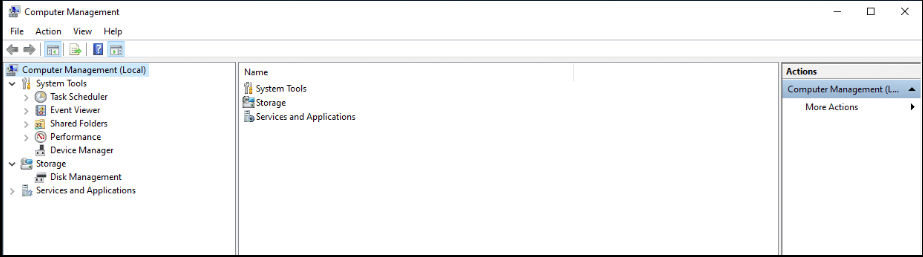
Device manager is opened by following the same process as above in the system properties section , but instead of clicking on properties we are going to click on manage, this will take us to the system management interface and then from there we can get to the device manager , although seldom used throughout this course it can be useful in the odd case you need to track down a faulty port or driver that is wreaking havoc on your systems or misbehaving with your other peripherals.
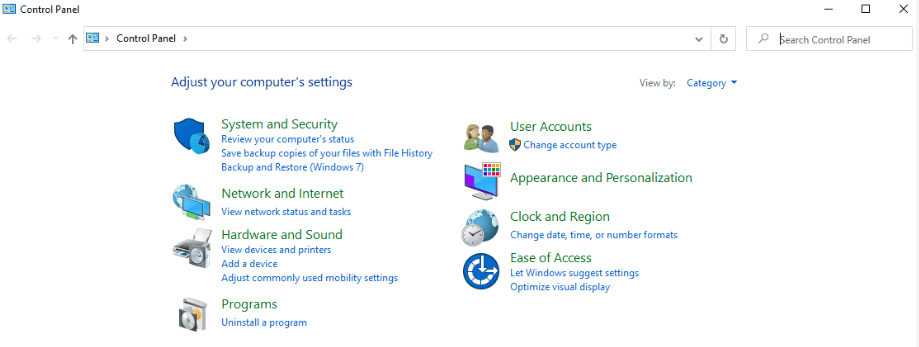
Control Panel
The control panel is basically where all of your system settings are stored and where you can do everything from uninstall apps to change your clock and everything in between, this is the place to go as soon as you want to make a system change.
Windows Keyboard Shortcuts
Window Management
So when it comes to window management we are going to discuss a few things namely the toolbar , application focus , minimize , maximize , hiding windows , closing windows and mission control.
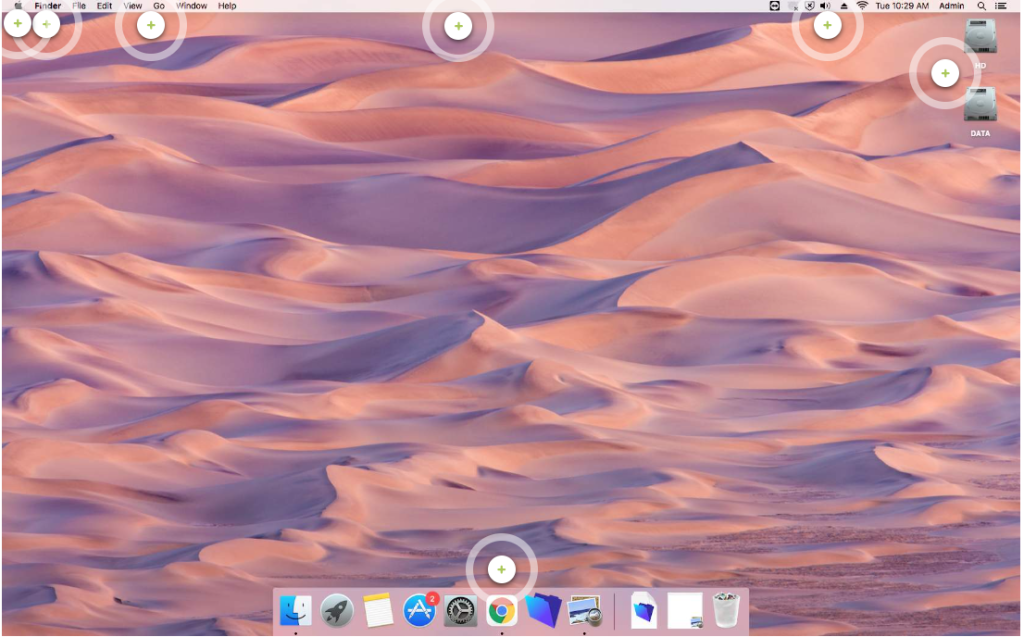
Apple Menu
Main menu to get into various system settings and proeprties
Application Nameplate
Nameplate of the application that application focus is currently on.
Dynamic Menu
Menu structure will change based on application focus.
Tool Bar
Houses the Dynamic Menu structure, Apple Menu, Application Nameplate and the status section.
Dock
This is where mac stores all of the apps that you might need quick access to and shows you all of the open apps on your system denoted by the small black dot below the application.
Status Section
Shows system status, IE WIFI, Battery Life and open background apps and services
Connected Drives
This are shows all of the connected drives including CD and USB Flash Drives.
Finder
Finder is the application that runs all of the graphical elements of the Mac interface and it's also responsible for the spotlight search and all of the windows etc. Furthermore it has its own icon that lives on the far left of the dock which always brings you back to the finder app once clicked on , this is important because of the way Mac OSX works with application focus, when you click on an application it pulls into focus so to speak and now all of your shortcuts along with the dynamic menu system are specific to that application.
The Dock

User Applications
Applications on the left hand side are here by default. The Dock can be customized by right clicking on an open application and selecting "Keep in dock".
Open Windows
Allows you to see at a glance what is open (minimized) on your system.
Trash
Deleted files are stored here for review before permanent deletion, IE 'emptying the trash'. Hidden Folder on removeable drives.
Opening and closing Applications
Opening and closing applications can be done quite simply by single clicking on them or right-clicking and clicking on open.
System
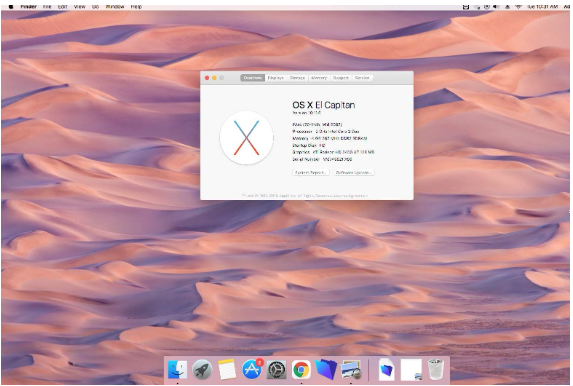
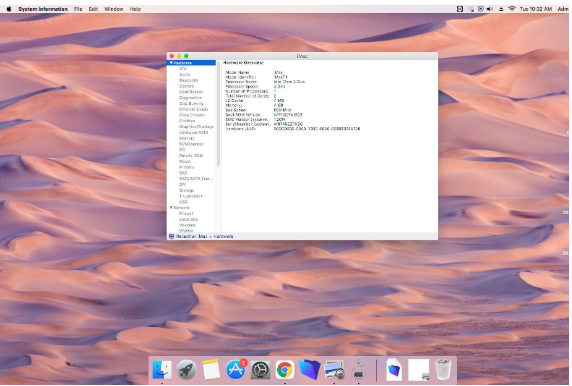
System Profile
System Profiler is just like System Properties in Windows, it basically just tells us what is in our system hardware wise, what version of Operating System we are on and what the serial number is for your system, this can be important for insurance.
System Report
A far more detailed description of what hardware is in your system, this is used to diagnose more advanced problems and also see if any piece of hardware is malfunctioning. It's also a way to access information like logs for software.
System Preferences
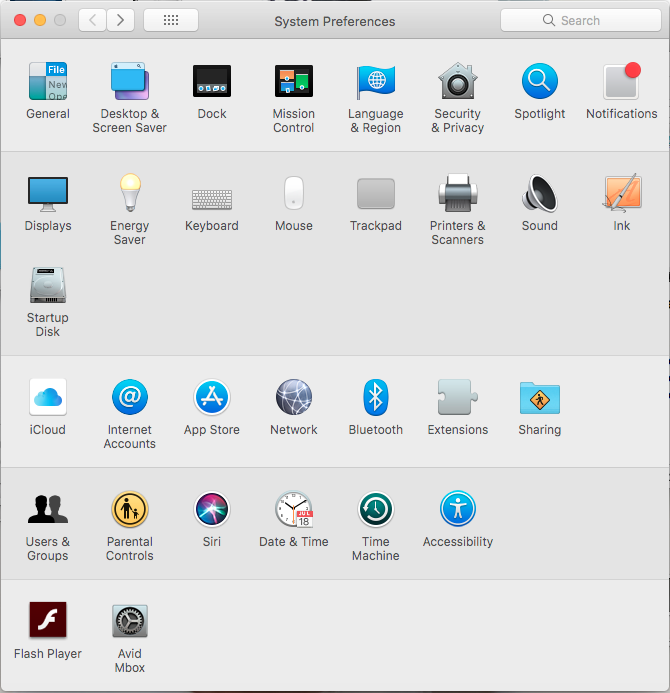
System Preferences on macOS is the central hub for customizing and configuring your Mac. It covers settings for display, sound, trackpad, keyboard, network, and more. Access it through the Apple menu or the gear icon in the Dock.
Utilities
The Utilities folder on a Mac contains essential system tools and applications for system management and troubleshooting. It includes utilities like Disk Utility for managing disks and storage, Terminal for command-line access, Activity Monitor for monitoring system resources, and others like Console, Keychain Access, and Terminal. These tools are crucial for advanced users and system administrators to maintain and troubleshoot the macOS operating system.
Mac OS Keyboard Shortcuts
Tutorial & Exercise: How to run windows on a Mac? Drive Formats. Questions... Quiz. Typing. Explore Mac features.